Linux - Basic fundamental and commands

• 15+ years of experience in developing applications using Microsoft.NET technologies.
• 11 years of experience in Healthcare product development, worked on almost all modules like Master Data, Patient Registration/ Visit, Clinical Charting, Resouce Scheduling, CPOE, Patient Accounting, Finance, Billing, MAR, Pharmacy, Inventory, Insurance, Claim Processing
• Strong knowledge of HIS domain and Customer interaction
Fundamentals of LINUX
What is Linux:
Linux is a is a family of open-source Unix-like operating systems based on the Linux kernel, It is released under the GNU General Public License (GPL). Anyone can run, study, modify, and redistribute the source code, or even sell copies of their modified code, as long as they do so under the same license. It is very stable, reliable, and less prone to crashes than other operating systems
Linux, more commonly used in servers and supercomputers and it is known for its stability and security.
Linux Distribution
1) Ubuntu : Best For Beginners
2) Fedora : Best for Server Programmers
3) Kali : Best For Security Programmers
4) Red Hat : Enterprise release
5) Debian : Driven by community
6) Manjaro : Best for Intermediate Programmers
7) Arch Linux : Best for Advanced Programmers
8) SUSE : Best for System Admins
Why Linux
1) Security: Linux is known for its security features, which are critical for DevOps. With the increasing need for secure applications, Linux is an ideal choice for DevOps teams who want to ensure the security of their applications
2) Flexibility: Linux provides an immense amount of flexibility and customization options, which is vital for DevOps. DevOps teams can configure Linux to fit their unique needs, which makes it an excellent choice for deploying and managing applications.
3) Automation: DevOps is all about automation, and Linux provides an excellent platform for automation. Linux has powerful command-line tools that allow DevOps teams to automate tasks, such as deploying and managing applications.
4) Scalability: Linux is highly scalable, which is essential for DevOps. DevOps teams need to be able to scale their infrastructure quickly and efficiently, and Linux provides the tools to do this.
5) Cost Effectiveness: Linux is an open-source operating system, meaning that it is free to use. This can save your organization a significant amount of money on licensing costs, allowing you to allocate those resources elsewhere.
Structure of Linux
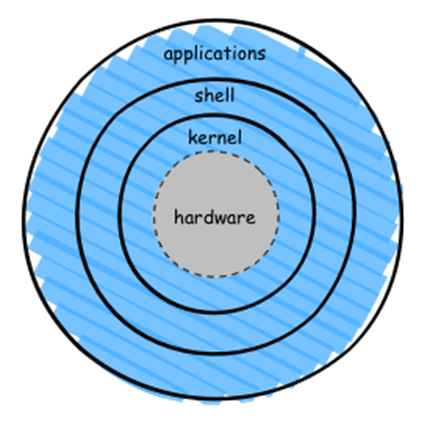
HARDWARE: These are the physical parts of a computer, such as central processing unit (CPU), monitor, mouse, keyboard, hard disk and other connected devices to CPU.
KERNEL: This is the core part of Linux. The name of the Kernel itself is given Linux. It manages the operations of the computer and the hardware, memory, and CPU time. The kernel is dependent on Shell to communicate with our applications/utilities and hardware.
SHELL: It acts as a bridge between application/utilities and Kernel. Shell is an environment in which we can run our commands, programs, and shell scripts. It is a gateway to give instructions to the Linux kernel. Shell accepts the pre-defined commands with proper syntax and interprets them before forwarding them to the kernel.
Basic Linux Commands
clear : To Clear the screen
date : to display current date and time
whoami : To know the current user
history : To display the history of commands executed.
echo "Hello" : To print Hello on screen
echo "Hello" > f.txt : It will create file f.txt and write content Hello into it or creates the file if it doesn't exist
echo "World" >> f.txt : It will append the data into f.txt.
cat <filename> : To view the content of the file.
file f1.txt : To display the file type
chmod 777 <filename> : To change the access permission of the file.
rmdir <folder name> : To remove a directory/ Folder
touch myfile.txt : To create a file named myfile.txt
head : To displays the first 10 lines of a file
head : To displays first 10 lines
head -n 3 fruits.txt : To display first 3 lines from fruits.txt
head -n 5 /etc/passwd : To displays first 5 lines
head -5 /etc/passwd : To displays first 5 lines
tail : To displays the last 10 lines of a file
tail /etc/passwd : displays last 10 lines
tail -n 5 /etc/passwd : displays last 5 lines
tail -5 /etc/passwd : displays last 5 lines
tail -n +25 /etc/passwd : display from 25th line onwards till the end of the file
diff color.txt fruits.txt : To display the differnce between the two files.
wc : Word count
wc /etc/passwd => display nos. of lines, words and characters in passwd file
wc -l /etc/passwd => display nos. of lines in passwd file
wc -w /etc/passwd => display nos. of words in passwd file
wc -c /etc/passwd => display nos. of characters in passwd file
wc -lc /etc/passwd => display nos. of lines and characters in passwd file
Listing commands
ls option_flag arguments --> list the sub directories and files avaiable in the present directory
Examples:
ls -l --> list the files and directories in long list format with extra information
ls -a --> list all including hidden files and directory
ls -al --> long listing
ls *.sh --> list all the files having .sh extension.
ls -i --> list the files and directories with index numbers inodes
ls -d */ --> list only directories.(we can also specify a pattern)
pwd --> Gives the present working directory.
cd path_to_directory --> change the directory to the provided path
cd ~ or just cd --> change directory to the home directory
cd - --> Go to the last working directory.
cd .. --> change directory to one step back.
cd ../.. --> Change directory to 2 levels back.
mkdir directoryName --> to make a directory in a specific location
mkdir MyFolder --> make a new folder 'MyFolder'
mkdir .NewFolder --> make a hidden directory (also . before a file to make it hidden)
mkdir A B C D --> make multiple directories at the same time
mkdir /home/user/Mydirectory --> make a new folder in a specific location
mkdir -p A/B/C/D --> make a nested directory
File/Directory Operations
cp <source_path> <dest_path> : To Copy files
cp -r <source_dir> <dest_dir> : Copy directory [ -r stands for recursive ]
rmdir : To remove directory
rm -r <dir_name> : To remove directory along with its contents (folder/files) recursively.
rm file1.txt : To remove a single file file1.txt
rm file1.txt file2.txt : To remove a multiple file file1.txt and file2.txt
To display brief description of a command => whatis <command>
Note : To create/update whatis database => mandb [ to be run as root user ]
Tips
The “>” is the output redirection operator used for overwriting files that already exist in the directory. While the “>>” is an output operator as well, but, it appends the data of an existing file
#linux #devops #devopsengineer #devopscommunity #devopsjobs #automation #security #scalability #infrastructure #90daysofdevops #trainwithshubham


